Why AI-generated alt text needs a human proofreader
No one mentioned AI-generated alt text; the client simply asked me to review a PDF of their annual report for spelling and grammar errors. However, when I hovered over the images with my mouse, I noticed several horrific errors that they would never want published.
Almost every image contained alt text that was factually inaccurate – for example, describing a man as a woman. However, several used sexually explicit language to describe innocuous images – they’re too explicit to reproduce here. Not surprisingly, the client was horrified.
Recognising the reputational risks of inaccuracies and the importance of charities meeting their accessibility obligations, my client quickly understood that having a human proofreader review the AI-generated content for accuracy and ensure the images were free from harm was well worth the effort.
Main takeaways from this post:
|
What is alt text and why does it matter?
Alternative text, or alt text, is embedded in photos and graphs to help “people understand what is in the graphics even if they can’t see them”, as explained by the Chartered Institute of Editors and Proofreaders (CIEP) web editing course (2022).
Alt text matters because it makes digital content accessible under the Web Content Accessibility Guidelines (WCAG) but applies beyond websites. This international standard benefits people with visual impairments, as well as those who are deaf or hard of hearing, or who have motor or cognitive impairments.
Users of screen readers rely on alt text to understand images on a web page. However, as the RNIB points out, alt text also helps search engines find pages more easily and ensures a better experience for users who have images turned off.
Alt text, accessibility and the law
UK organisations risk breaching accessibility law if their content lacks alt text:
- The Equality Act 2010 – requires service providers in Great Britain to make reasonable adjustments for disabled people, including for digital content.
- The Public Sector Bodies (Websites and Mobile Applications) (No. 2) Accessibility Regulations 2018 – require public sector bodies to comply with WCAG 2.1 AA via EN 301 549. A charity is exempt unless it is mostly publicly funded, provides services essential to the public, or provides services aimed at people with disabilities.
- The European Accessibility Act (EAA) – has applied since 28 June 2025 to in-scope products and services provided to consumers in the EU, regardless of where the sellers are based. Microenterprises like mine are exempt from some requirements.
In addition, UK and global organisations could be exposed to other countries’ legislation, such as the Americans with Disabilities Act (ADA) in the USA, if they publish a document containing unchecked AI-generated alt text.
Accessibility compliance may also be written into procurement documents.
How AI generates alt text — and where it goes wrong
I suspect the AI-generated alt text errors in the PDF I proofread originated in a Word document. Someone, or an automated process, ran an AI accessibility check or an alt text generator on all the images before they were designed. The text and image metadata were then imported into design software, probably InDesign, or directly into the PDF.
AI mistook a stylised person with an extended arm in an illustration for a human figure – a posture that appears in all kinds of (ahem) compromising contexts. A low-resolution image in the PDF may have confused it further.
It’s also possible that the error was invisible to everyone who handled it after the drafting stage, leaving the proofreader as the last line of defence.
Why AI gets it confidently wrong
Here’s why AI alt-text generators get it so wrong:
- AI isn’t human. It can’t understand the narrative’s context – a human reads the surrounding text and understands the publication’s purpose, so we can judge what makes sense.
- It hallucinates. Misinterpreting details or being unable to grasp what’s in the image
- It never says, ‘possibly a figure’. It always asserts
- Image quality. A small, low-resolution photo in a PDF may not have enough information for AI to work with
- Other images, such as logos and infographics, can confuse AI. It’s better at identifying realistic photos. Yet illustrations, symbols and icons often appear in corporate and charity publications.
The risks of unchecked AI alt text
Get alt text wrong, and the risks could be significant. The 2026 WebAIM Million survey of the top 1 million home pages found that 16.2% of home-page images lacked alt text.
A PDF linked to or uploaded on a website is subject to the same accessibility obligations as a web page. The universal accessibility standard PDF/UA helps organisations meet WCAG requirements and ensures screen readers can read them.
Legal and compliance exposure
Under the Equality Act 2010, a disabled person could bring a discrimination claim in the county court if they encounter a disability barrier, such as incorrect, misleading or missing alt text. Compensation can cover financial loss and injury to feelings.
In 2023, the High Court ruled against the Department for Work and Pensions (DWP) in an accessibility case, resulting in a £7,000 settlement plus legal costs. Dr Osman, a self-employed access consultant with sight loss, brought a judicial review against the DWP, supported by the RNIB, after the DWP sent him 21 inaccessible letters despite his requests for accessible formats.
Although the case concerned scanned PDFs that Dr Osman couldn’t read, rather than alt text, it still shows that accessibility failures under the Equality Act can result in real settlements.
Litigation around digital accessibility, particularly in the US, is also rising. Seyfarth Shaw reported 3,117 website accessibility lawsuits filed in US federal courts in 2025 – a 27% increase over 2024.
As far as I know, no case has come to court yet, but it’s early days.
Reputational and safeguarding damage
Not using alt text or using overly explicit descriptions can lead to negative publicity from the media, social media, and customers, harming trust, confidence, and your reputation.
If a charity works with vulnerable people like children or abuse survivors, publishing sexually explicit alt text – even by accident – could lead to a serious safety investigation or a complaint.
Once published, it’s out there
If the charity had released its report containing the AI alt text mistake, then fixed and re-released it, the original PDF was likely already downloaded, saved, shared, or stored. Therefore, fully recalling it would be unlikely.
What a human proofreader checks that AI can’t
Who is responsible for checking the alt text? It might be an editor’s responsibility when reviewing the document’s overall structure, but if it’s a quality check, the proofreader might handle it. Sometimes, it’s unclear who is responsible.
In most publishing and corporate processes, a designer or a program like Word or Adobe adds alt text before the proofreader checks it, rather than an editor. However, many proofreaders won’t check for things you can’t see in print or visual documents unless clients request it.
Both Adobe Acrobat and Word flag missing alt text but not alt text that’s wrong. Only a person can tell whether the wording makes sense.
While it’s always sensible to ask a proofreader to do a final check of any publication, the surest way to avoid publishing ambiguous or plain wrong alt text is to build in alt text checks at every stage of your workflow, so humans keep an eye out for it – even if AI drafted it initially.
How to check alt text in Word
Right-click on an image and select View Alt Text (Mac for Word) to open a panel on the right. It might be Edit Alt Text if you’re using Word on a PC. You can ask AI to generate alt text or mark it as decorative. You can also edit the text.
In this example, the AI-generated content says, ‘photograph of a domestic cat’, but you don’t need to tell screen readers that it’s a photograph.
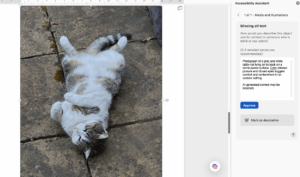
A Word page showing the cat and suggested alt text. Here’s what it says: Photograph of a domestic cat lying on its back on a stone-paved surface, displaying a relaxed posture. The cat has a white belly with grey and brown tabby markings, and the paving stones show natural wear and small patches of greenery
In Word for Mac, you can also check accessibility by going to Review > Check Accessibility, which flags missing or inadequate text. It opens an Accessibility Assistant, where you can see reworded alt text. The version below says the cat’s eyes are closed, but they’re not.
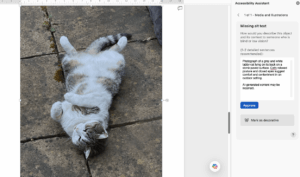
The missing alt text reads: Photograph of a grey and white tabby cat lying on its back on a stone-paved surface. Cat’s relaxed posture and closed eyes suggest comfort and contentment in an outdoor setting.
Here’s my edited version:
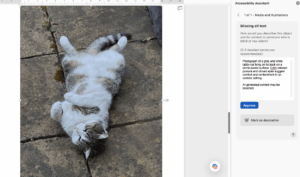
My text adds more detail about the cat’s nature and its positioning. The alt text reads: A relaxed white-and-grey tabby cat lies on its back with its paws in the air on a stone patio. A panel of text to the right explains how to add missing alt text.
How to check alt text in Adobe Acrobat Pro
You can hover over images, as I did, but it will only show what’s there. It doesn’t tell you what’s missing or flag any empty tags. To check properly:
- Go to Tools > Accessibility > Accessibility Checker
It produces an automated audit of failures throughout the document, including missing alt text. It won’t show you whether the text is correct. - To check the alt text and edit each, go to: Tools > Accessibility > Reading Order
Click the image to edit the tag, or right-click an image to Edit Alternate Text; the alt text will appear in a pop-up you can edit.
You’ll need Acrobat Pro to do this. Acrobat Reader doesn’t allow editing.
Protect your documents and publications in future
Whether you work for a charity or a business, before you publish your next annual report (or any publication with images), make sure someone has checked the alt text.
It’s only a matter of time before someone uses demonstrably incorrect AI alt text in a test case. You’d just need a visually impaired user encountering it and suffering embarrassment, distress, inability to access information, or reputational harm, and a lawyer willing to bring a case for it to happen.
Writing this made me go back and review my website’s alt text. There’s always room for improvement. If a proofreader who’s just spent a week immersed in this topic needs to revisit hers, it’s worth asking – when did you last check yours?
- If you’d like a proofreader who checks more than they were asked to, get in touch.